We’ve also found ourselves surprisingly fascinated by podcasts about entrepreneurship, money management, and the world of business. They’re not nearly as stiff as they sound, and can lead to a lot more understanding about certain topics that we might not fully get (or get at all) when we press play.
The Economics of Everyday Things
In 15-20 minutes, The Economics of Everyday Things peels back the curtain on industries you might not think of as intricate, fine-tuned businesses – things like self-checkout machines, car colors, cemeteries, and houseplants. You’ll hear from an expert and gain a much better appreciation for the hidden decisions that go into creating everyday items.
How I Built This
How I Built This tells the origin stories of popular brands like Built-A-Bear, Scrub Daddy, Crumbl cookie, and hundreds more. You get to hear about their entrepreneurial beginnings, early struggles, and the keys to their eventual success – all from the founders themselves. It can be fun to hear backstories on companies you hadn’t thought much about, and even glean some business tips along the way.
The Journal
We almost put The Journal in the “News” category because this daily podcast from The Wall Street Journal follows a similar format. But the topics do tend to have a business- or financial-slant, like “How Weight Loss Drugs Are Gobbling Up Small Town Budgets” or “The Big Business of Holding Back Eighth-Graders.” The hosts are also friendly, relatable, and make complex topics easy to understand.
Planet Money
Planet Money from NPR is probably the OG economics podcast. They joyfully and nerdily show how everything ties back to the economy and how that shapes our lives. They do a mix of explainers, experiments, and investigations. Recent episodes range from “What makes a toy go viral” to “The leaked tapes that show how the rich avoid taxes,” making it a fun smorgasbord of topics big and small.
What We Spend
What We Spend is a voyeuristic podcast where you get to peek into someone else’s finances. Each episode, an average person talks through what they make, what they spend it on, and what factors impact their finances. Beyond just breaching this taboo topic, you also get to learn about different careers (Broadway actress, long haul trucker, etc) and what it takes to make it in those jobs.
Money For Couples
Money For Couples takes the What We Spend concept up several notches. Not only do you get the nitty-gritty details of someone’s finances, you basically get to sit in on a marriage counseling session. Real-life couples lay out their money troubles – overspending, mounting debt, meager savings, etc – in exchange for practical advice without any sugarcoating.
Lydia Mack is a freelance writer and author of the book “I Put Pants On for This.” Her work has been published by VICE, HelloGiggles, On Our Moon, and more. She has been a sweatpants loyalist and homebody since before it was cool, and frequently forgets that she just made a cup…read more
We’ve said it before, and we’ll say it again: You don’t have to spend a fortune to make a huge impact. That’s especially true for bathrooms, which are easy spaces to transform on a budget (and on a deadline). Kelly von Weber had already given her guest bathroom a bit of color and charm a few years back, but as time went on, she realized her tastes had changed. READ MORE…
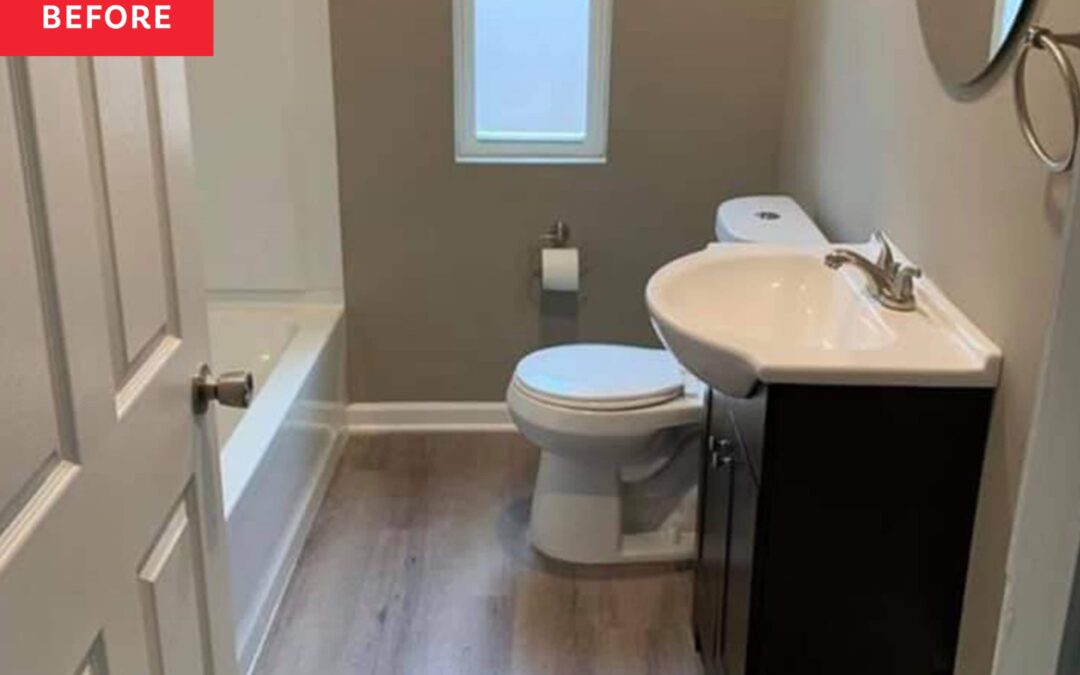
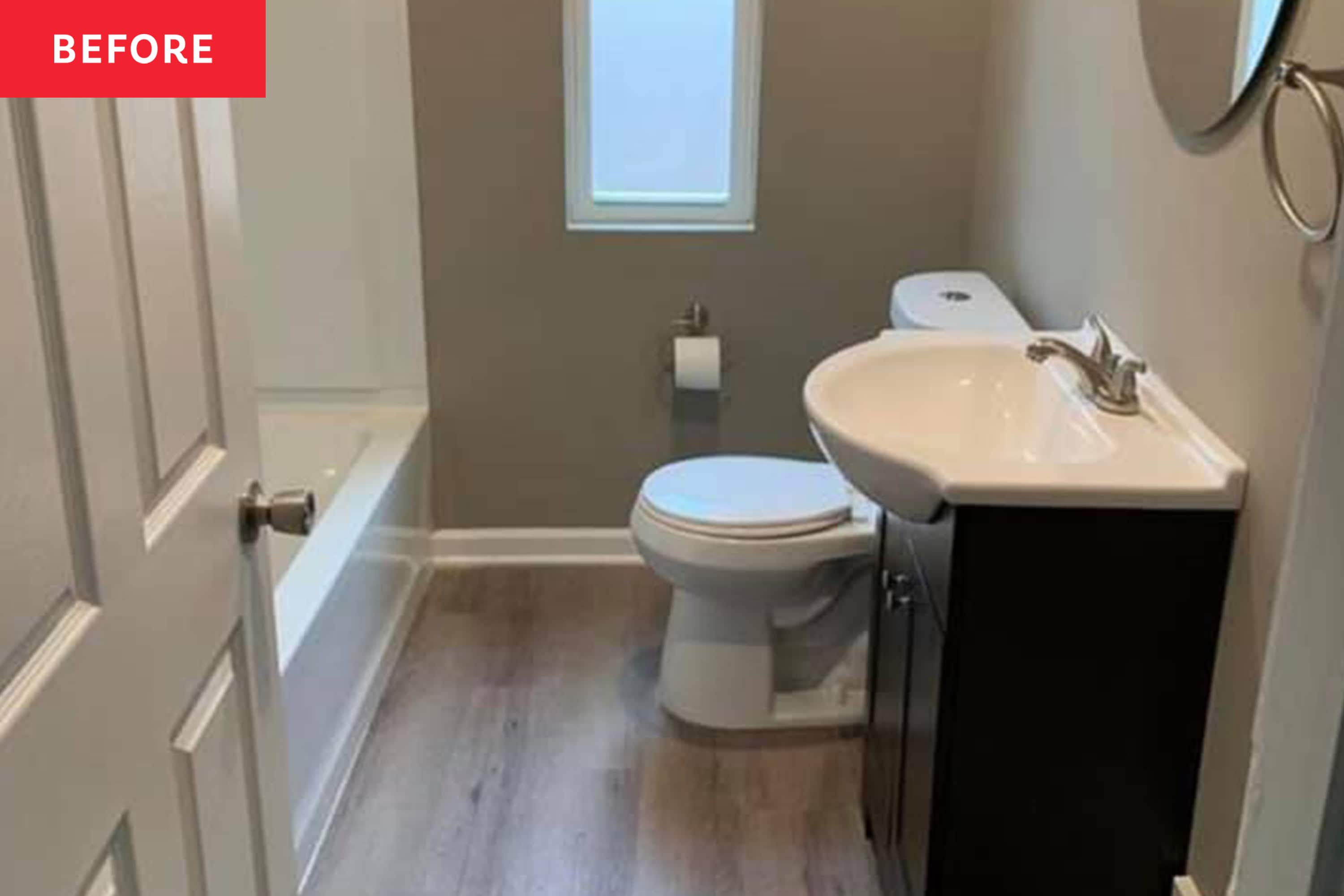
Bathrooms can sometimes be utilitarian, but they can also be welcoming and beautiful. The guest bathroom at Chelsea Scott’s home was anything but. “The ‘before’ of the bathroom was simply just plain,” Chelsea says. “The sink vanity was a dark brown, and the walls were painted with flat, darker beige paint that did not stand up to normal traffic in a bathroom. READ MORE…
We’re working on a big post about our finished renovation (which we last talked about on the blog here). But I’m dropping in to answer questions about the new flooring that we chose for our entire first floor (except for the tiled bathrooms). They’ve been one of the most-asked-about details of our reno on Instagram, where Sherry shared this reno as it rolled along in our Stories. So today we’ll cover the what, why, and how of our new flooring. It’s our first time using this particular material, and we have some thoughts.
You know we love saving and refinishing original hardwood flooring – we did it in our first house, our third house, the beach house, and the duplex – and each time we were extremely happy with the results. So back in 2020 it felt like a no-brainer to enthusiastically refinish the floors here and hope for the best.
To cut to the chase: we definitely had higher hopes for these floors, but they held up so poorly. And after 6 years of living with them, it became clear that this renovation was a crucial moment to pivot instead of attempting to patch in matching flooring in all the spots where we removed walls or added square footage (remember we finished the covered porch to become our daughter’s room).
New Floor FAQs
Here are the specific questions we’ll cover today:
Why did you replace your floors?
What flooring did you use?
How and why did you pick it?
Do you like them?
Why Did You Replace Your Floors?
You might be like: what the heck is different about this house than all the other houses where you refinished the original floors? Well, you may remember we have heart pine hardwoods upstairs, which is a pretty common and durable flooring type. It’s what we had at the beach house & the duplex, and we loved it. But we just had regular yellow pine downstairs here, and not the super old, dense pine that’s extra strong. This was newer yellow pine from the 90s.
So reason number one is just that the original flooring was not nearly as durable as we hoped it would be. Feel free to google “heart pine floors vs regular pine floors” for more info about how much they differ, but the general consensus is that pine is a softwood, especially yellow pine like ours. It dings, scratches, and dents easily from high heels, pets, or dropped objects. Meanwhile heart pine resists wear far better due to its high resin content (which we only have upstairs).
Long story long, yellow pine from that era just isn’t as durable of a flooring material – especially in rooms with frequent foot traffic by multiple people & pets. Especially not for a house by the beach with a pool (sand + water + wet towels galore).
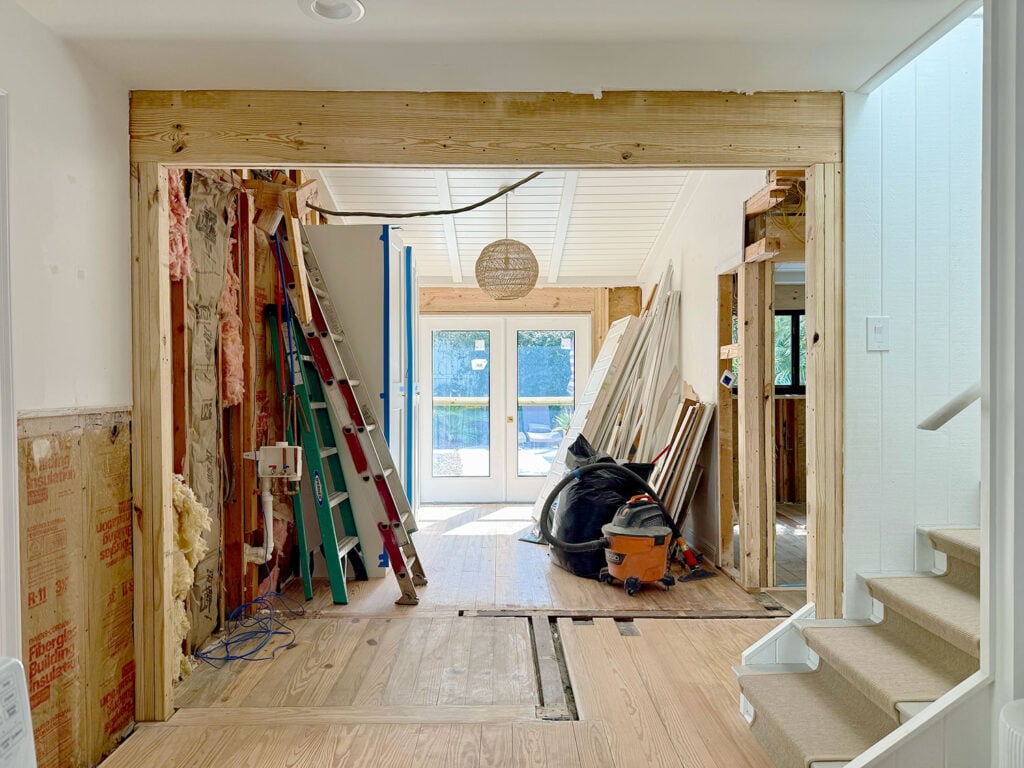
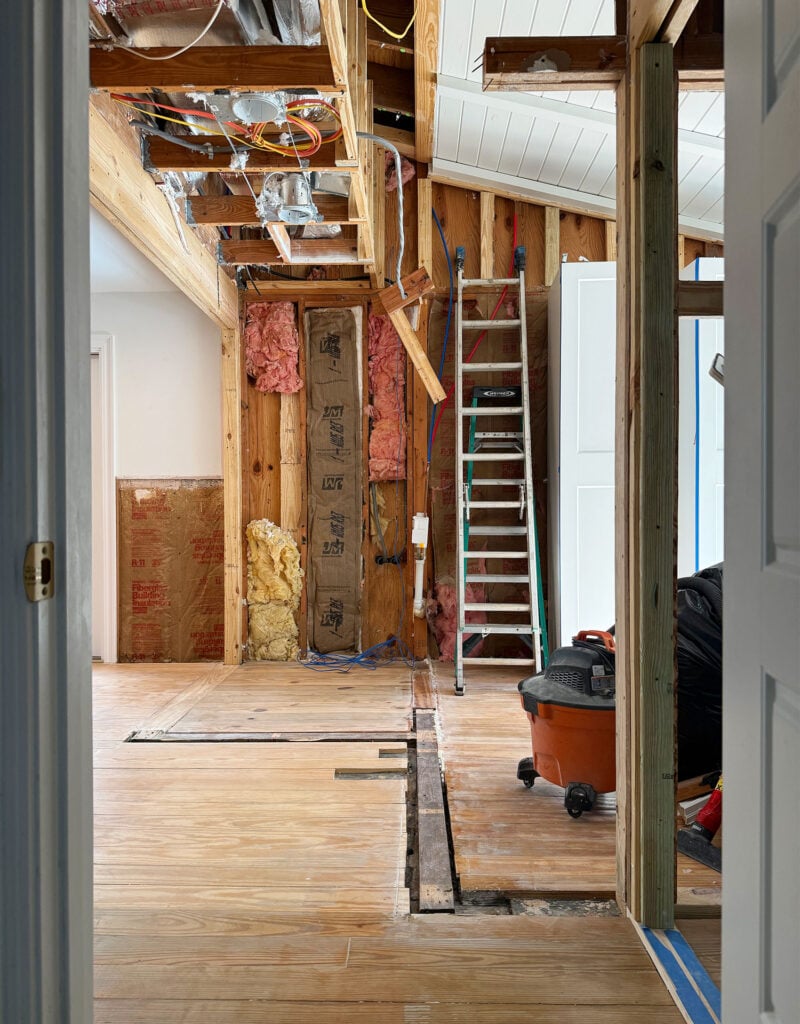
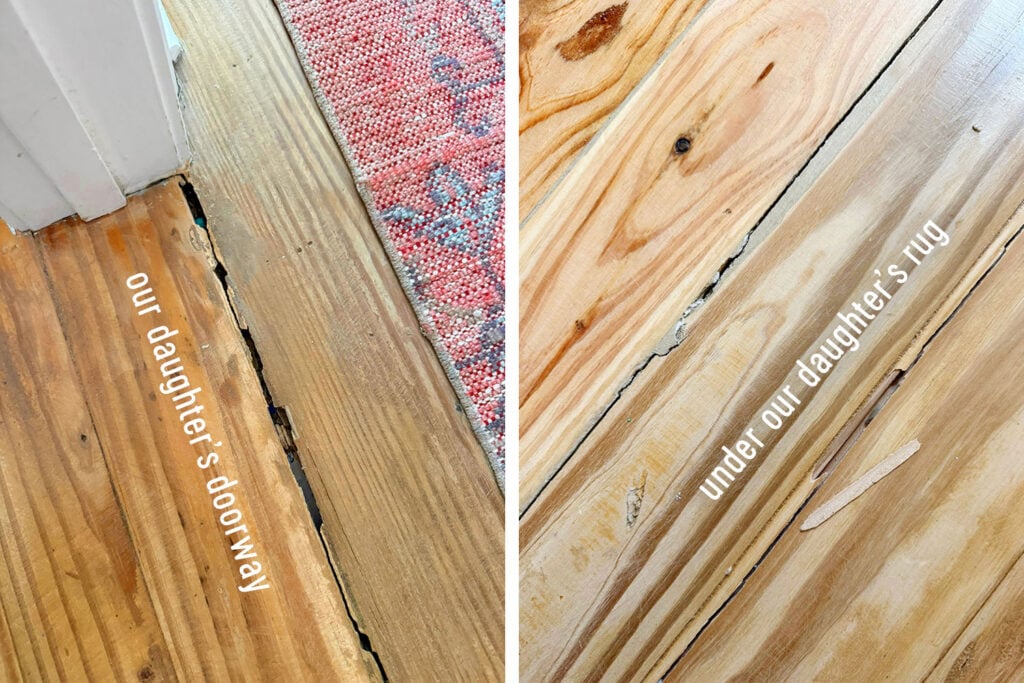
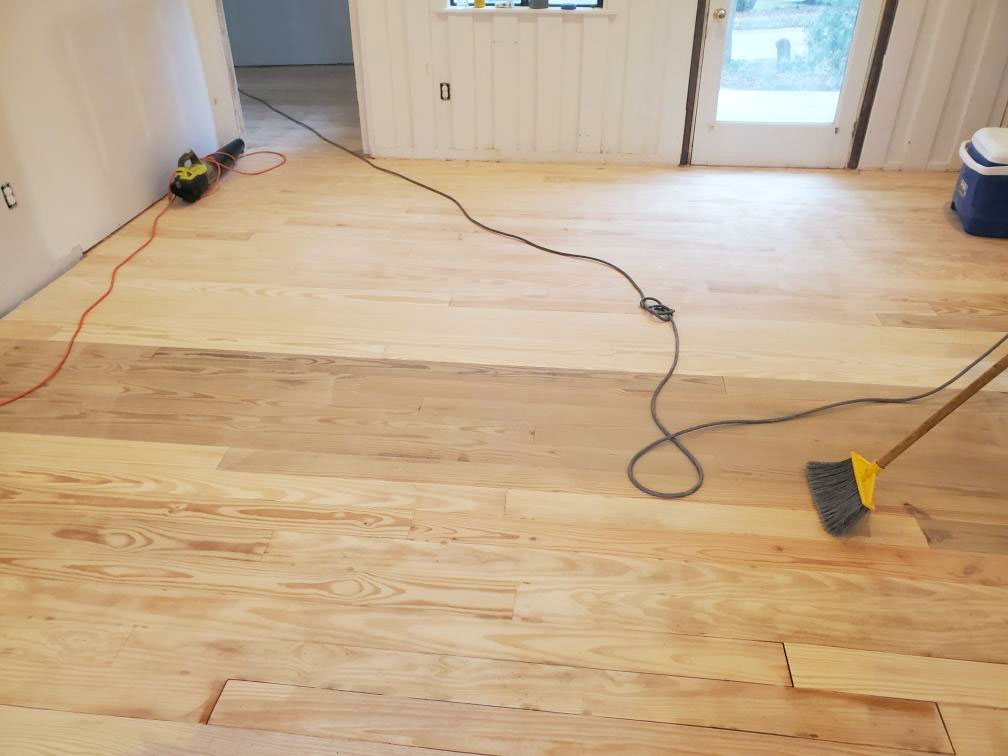
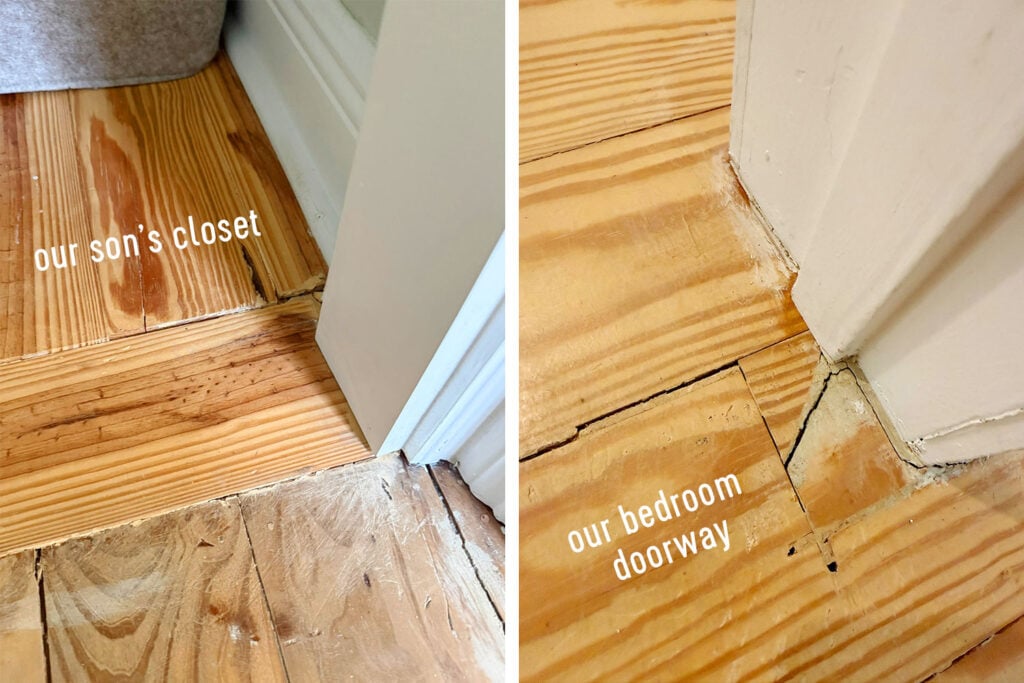
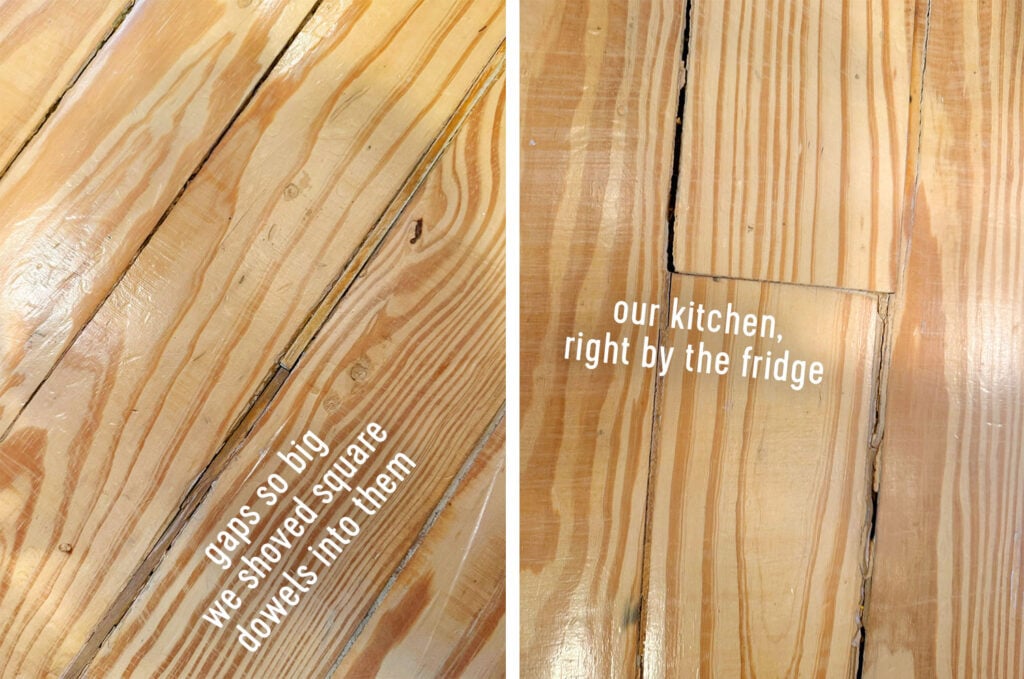
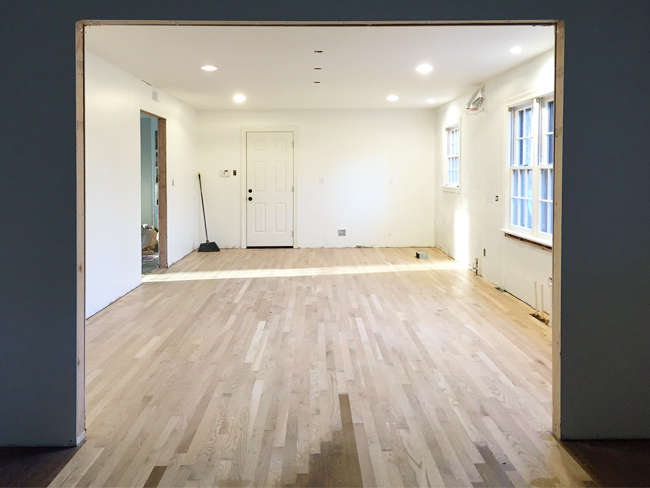
The second reason is that when you’re moving walls and building a new addition, the new layout can leave lots of gaps in an old floor, some of which you can see below. We also created a whole new room that had no flooring at all! So it would’ve been challenging to patch & match the existing floors for a seamless look.
But “challenging” doesn’t mean “impossible.” In fact, we’ve had hardwood floors patched in three of our previous homes with great results. So why not do that here?
Well, if we had loved how the old flooring had held up, it probably would have been worth the risk to us. We would have attempted to patch in new floors and hopefully could have gotten a reasonably close match. But in a nutshell, these floors were in rough shape. Like, embarrassingly bad in some spots – many of which you can see in the before & after video below.
Reason number three is the way they were poorly refinished, which became clearer over time. We actually considered replacing the floors even before we came up with our big idea for the renovation, but could never quite justify disrupting the house so much… which is why we waited until the house was already getting disrupted for our big “this is it” reno that accomplished all of our goals for the house at the same time (you can read more about those here).
“But wait, weren’t you “thrilled” with these floors when you moved in?” We were! Initially we were in love with how the floors turned out! The color was EXACTLY what we had wanted, and we loved their laid-back, rustic charm. We were also generally giddy about our new home’s overall transformation. And in some rooms (like our bedroom), the floors were virtually perfect.
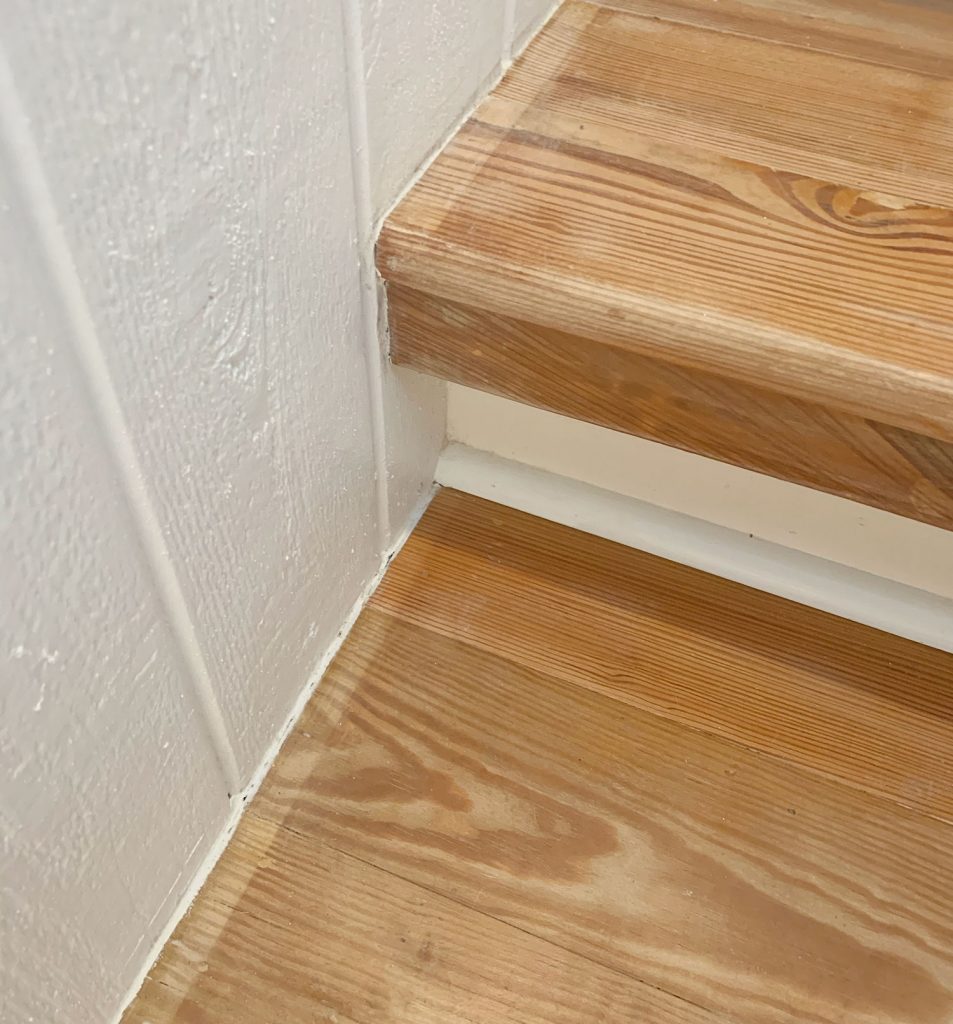
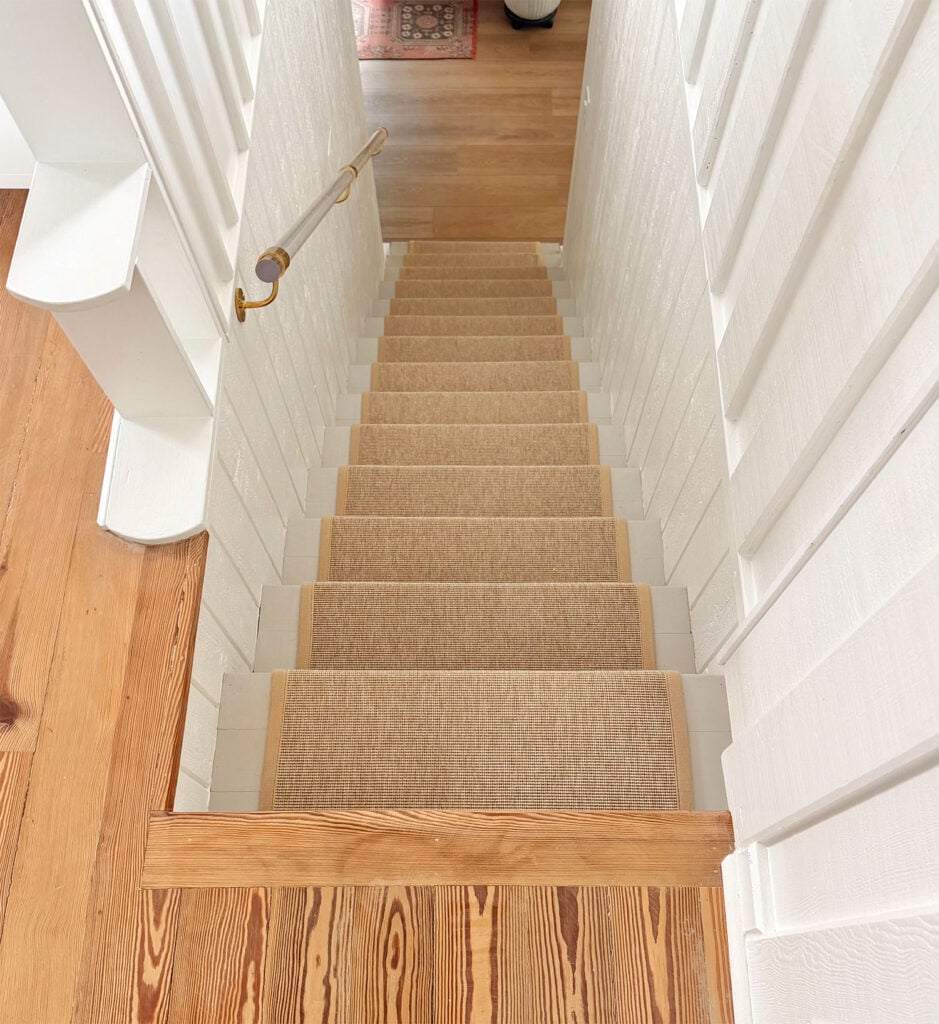
But the more time we spent living here, the more issues we noticed. We found areas that had been sanded, wood filled, and/or sealed poorly (like the edges of our stairs, which we ended up painting).
You may also remember from our home’s before photos that the previous owners had torn out a huge section of flooring due to a water leak. Many boards that the original contractor we used in 2020 had patched in began to separate and splinter over time. We believe they hadn’t been left to acclimate enough before installation, so as time went by, these separations and splinters occurred.
While the blame for this would fall at that contractor’s feet, we give him some grace because this was all happening during the height of the pandemic (Spring of 2020), which likely contributed to him rushing & not using skilled floor refinishers for the job. We (years later) learned that he used general handmen for our floor refinishing project instead of hardwood specialists, which is who we’ve always hired for every flooring reno we’ve done in previous houses.
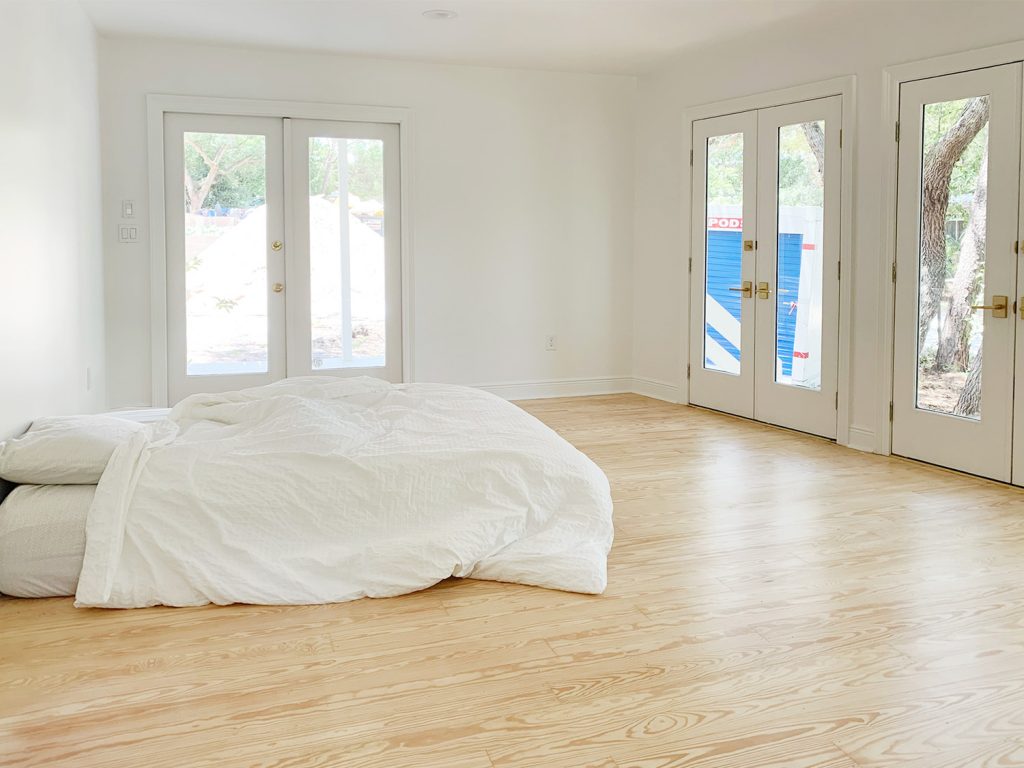
COVID also prevented us from being on the ground in Florida to catch some of the initial issues sooner (we didn’t lay eyes on the refinished floors until the day we moved in!). And I’ll say it again: in some areas, like our bedroom, they looked absolutely beautiful at first! Look how beautiful and gap free they look in this photo:
If they had stayed that good-looking over time, we would have stuck with patching things in and trying to make them work. But instead, as the years rolled by, we spent hours wood-filling cracks, screwing down squeaky spots, and covering bad areas with rugs as they continued to separate and pop and splinter apart. And all the while, things like dropping an apple (yes, an apple) or someone stepping inside for a minute with heels on made actual visible dents and dings in the floor.
True story: we once had an insurance inspector come in and say “this house looks so new except for all the floor gaps.” Le sigh.
Ultimately, the floors were one big disappointment, between the not-as-durable material, the installation issues, and the patching challenges we knew we’d encounter in the upcoming renovation. But we’re not sorry we tried our best to save them back in 2020. It bought us 6 years to figure out our dream floor plan, which was the perfect moment to right this wrong at the same time.
So, long story long, the decision to fully replace this flooring was an easy (albeit sad) decision.
What Flooring Did You Use?
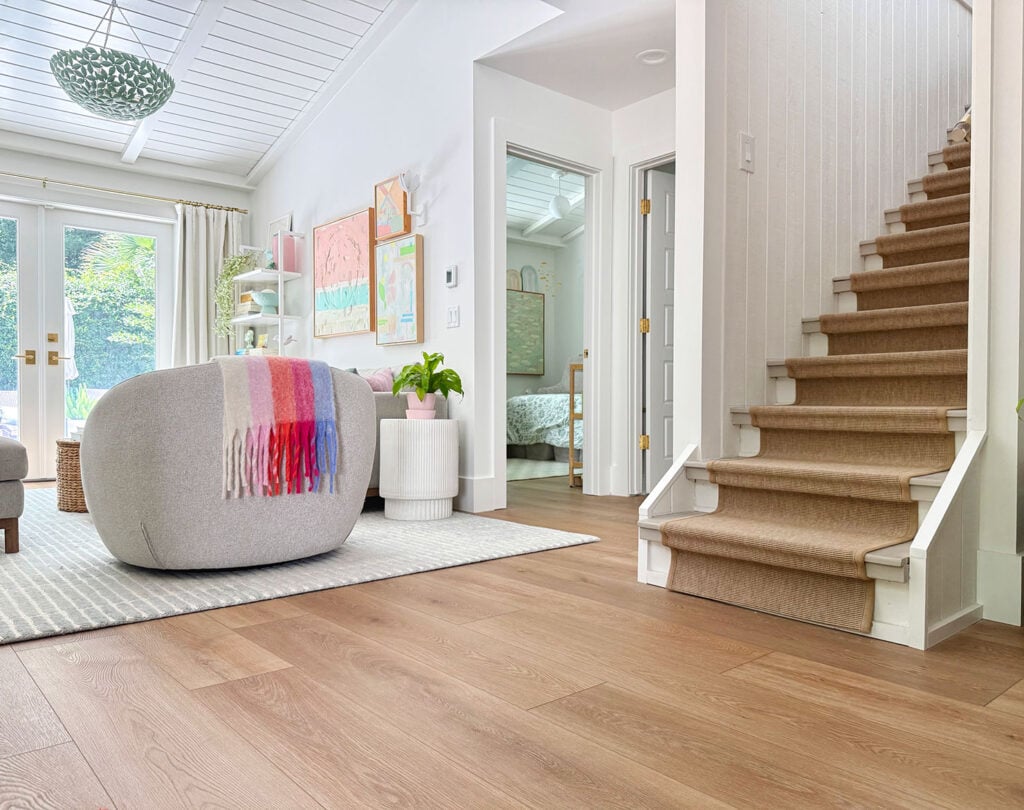
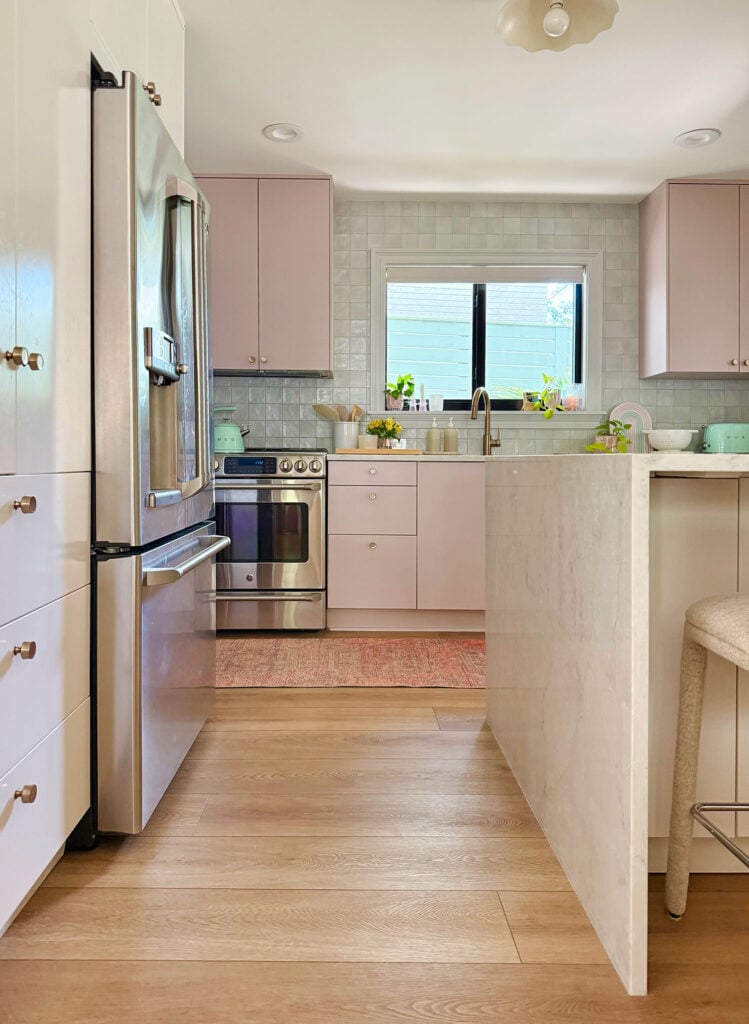
The new flooring is LVP, or luxury vinyl plank. Which I know will surprise some of you. In fact I think a ton of you might be hardwood purists like we were after decades of refinishing them and having great results. First let me say that LVP has come a long way. So if you saw it (or stood on it) 10 years ago, this is not anything like that stuff.
For this house and this climate/location our first instinct (of course) was to redo the whole downstairs with our favorite hardwood method (unfinished white oak, nailed down and then finished in place). But then we walked into a house that our new contractor was building during the planning process of this remodel (we didn’t use the same contractor we hired back in 2020, we found our new one through a local realtor & friend who personally had used him twice). Anyway, we walked into that house and we both said “we really like these hardwoods – lets just do this” and he’s said: “this is LVP.”
And then our heads exploded.
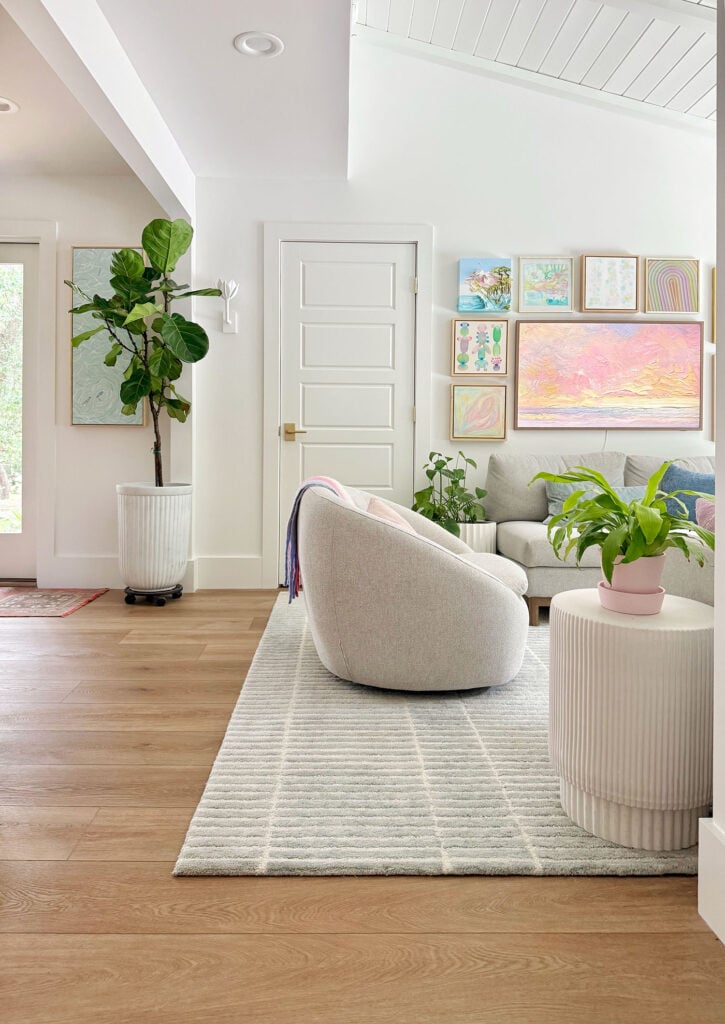
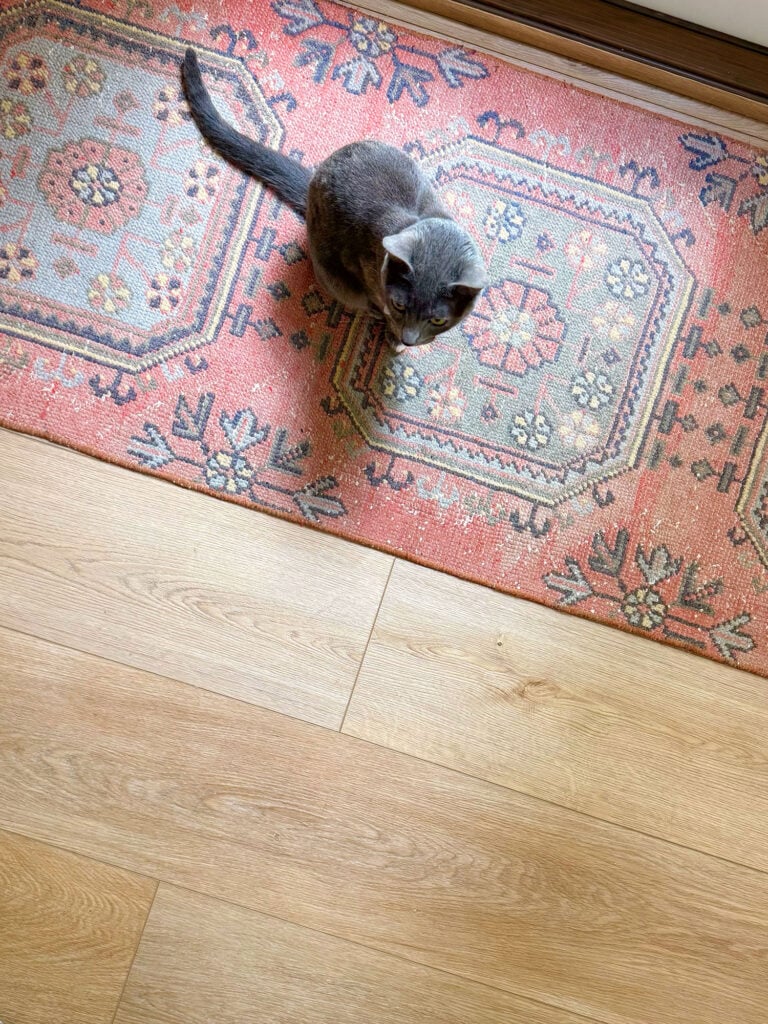
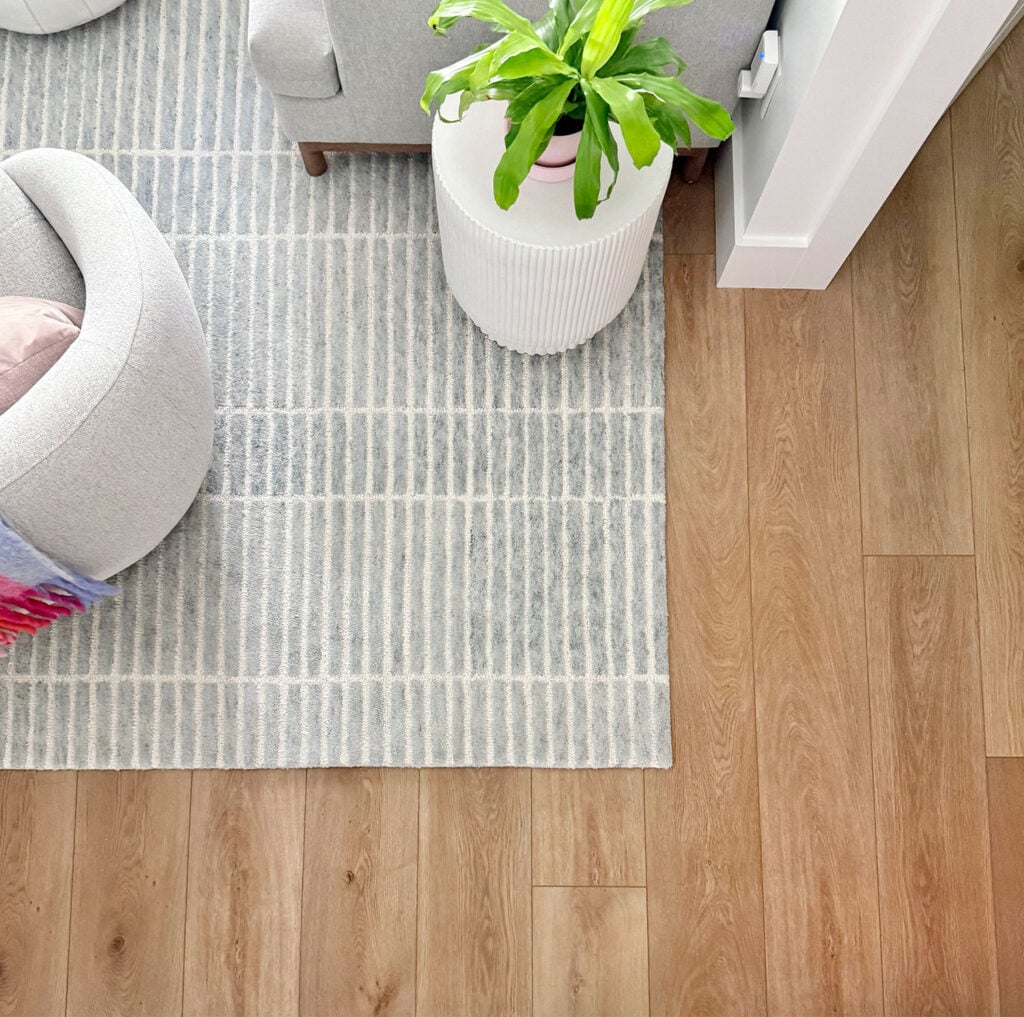
The specific name of it is V-Evo XL by Durato in the color “Biscotti.” We got it through our contractor, who got it through a local distributor – but I’ve found it listed in a couple of places online (here and here) with pretty terrible pictures, but you can order a sample and see it for yourself. If anyone spots it elsewhere, let me know, and I will update my links!
So yes, this is our first time using LVP, and we know some people have strong opinions about it, especially when compared real hardwood floors (which is typically our preference too – we totally get what you’re thinking). So let me walk you through how we came to this decision, and how we feel about our LVP floors now that they’re in and we’ve lived with them for around four months.
Why Did You Choose LVP?
In talking with our contractor at the big “these are LVP floors” reveal in that fancy new house he was building, we learned that LVP has two key advantages in a beach house like ours: ease of installation and long-term durability in our environment. LVP also tends to be cheaper than real hardwood (we spent A LOT LESS per square foot for this than we would on new hardwoods), which is not the only reason we’d ever pick something, but along with those two other perks it was compelling.
As for how it’s installed, LVP comes as pre-made planks that can be glued on or floated over a subfloor. Ours float, which makes it sound like they flex underfoot or sound hollow when you walk on them. Those were some of the misconceptions we had, but I’ve said it before and I’ll say it again: LVP has come a LOOOOOONG way. Our floors feel completely solid, there is no flex or bounce in them. Sherry was delighted to discover that when you walk on them in heels, they make that satisfying deep clacking sound like hardwood (not the lighter clicking sound that earlier floating laminate floors made).
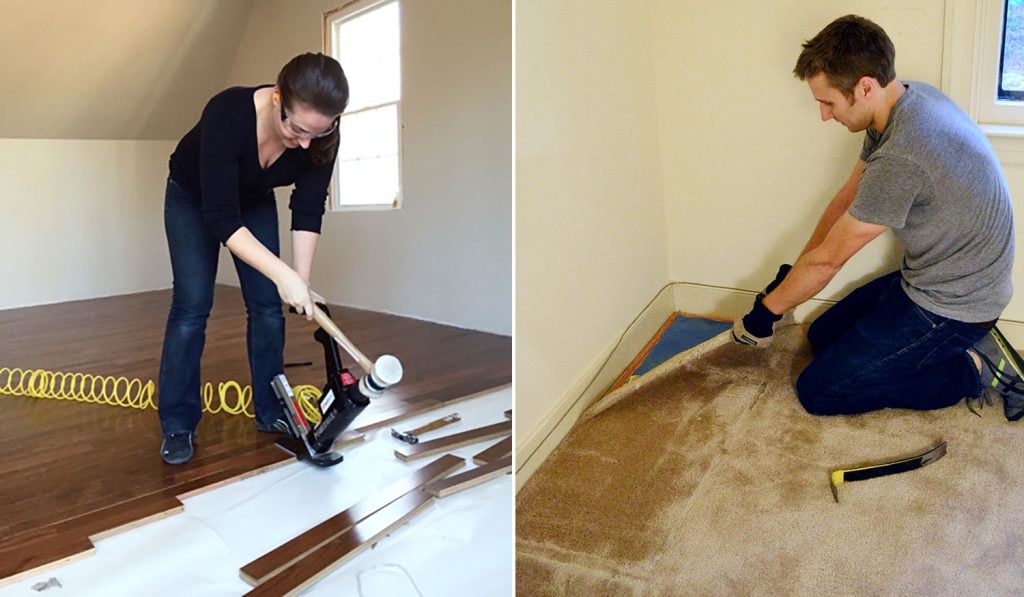
But back to the installation. Floating these pre-made planks makes for a much simpler and speedier installation than hardwoods, a contrast that we experienced firsthand when we did that in our last house. Those floors required 2+ weeks of laying, sanding, staining, sealing, and curing. It was long, messy, and smelly. By contrast, the LVP took one guy about 3 days – including demo of the old floor – and we could walk on it immediately. There was no smell, or extra waiting time to lay down rugs (I think they recommended 30 or even 45 full days of waiting to roll out rugs on our finished-in-place hardwoods in the last house).
Choosing LVP this time also meant the flooring contractor could work in sections. So rather than having to move EVERYTHING out of our entire house’s downstairs, we just shifted furniture around as he worked his way through the house, clearing one half of a room at a time.
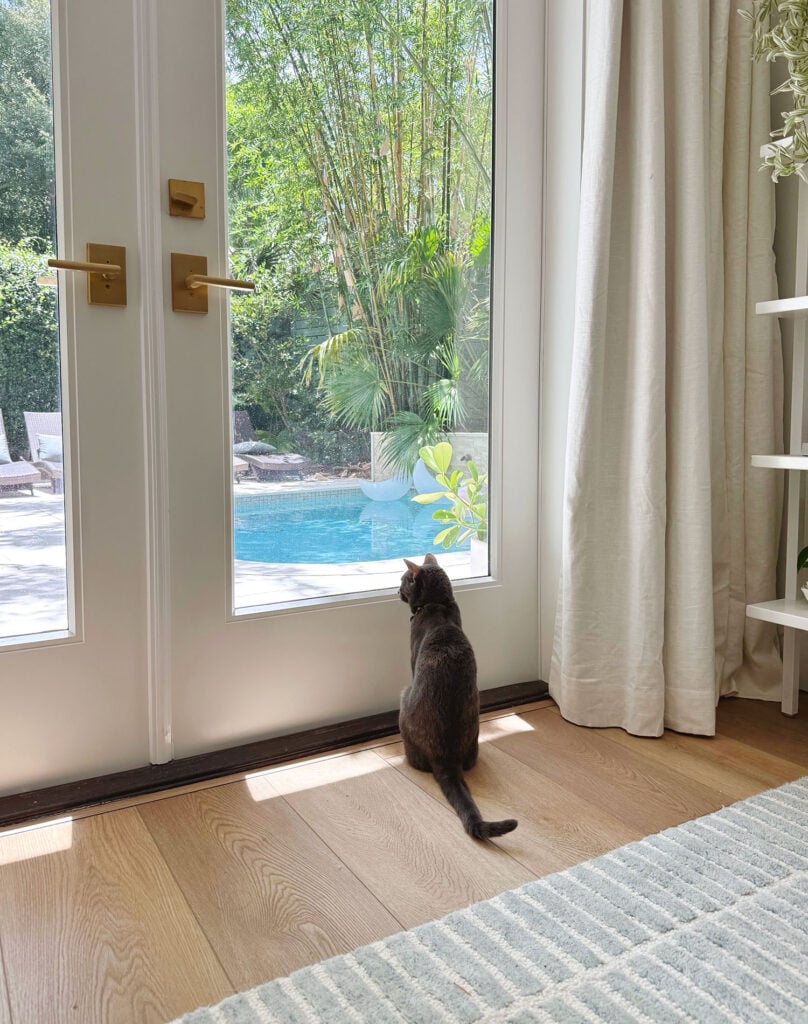
Beyond the easier install, LVP is also a popular choice because it’s waterproof and very durable. It’s a desirable choice in our area because you get the look of wood, but the performance of tile – so there’s less to worry about when people are coming in wet or sandy from the beach and pool. Another misconception we had is that the nice houses here don’t use LVP, they use hardwoods. Lo and behold, it’s so hard to tell that good-quality LVP isn’t hardwood, we learned that a ton of million-dollar beach homes are using LVP these days, because it looks like hardwood and it’s great for a beach environment.
So as much as we love real wood floors, all signs were pointing us towards LVP this time around, and we’re very very happy with our choice.
How’d You Pick This Specific Color and Size of LVP?
While standing in that home our contractor brought us to (wherein we basically screamed “we’ll have what they’re having!”) our contractor explained that we could choose narrower planks or other finishes. He even had a scrap piece of the Biscotti flooring from that new build and gave it to us while we were there. So we just that plank home and put it down in a few spots around the house and instantly knew it would be great.
We didn’t have any desire to change the thickness or the color at all, thanks to seeing it installed in the house he took us to. I’m sure we were also wowed by the general grandeur of this home (it was a fancy new build), but seeing it fully installed somewhere totally sold us on it. We decided not to overcomplicate this decision by comparing dozens of options when we had a perfectly great one laid out before us.
I can’t underline how much it helped to see it in person in another home first (and stand on it, and walk on it, and bend down and inspect it), thanks to our contractor bringing us to that house – so I’d highly recommend that if possible.
Do We Like Our LVP Floors?
Short answer: YES! Our old floors were long past the point of “rustic” and “charming” – so getting to walk on even, quiet, and won’t-give-you-a-splinter flooring feels downright luxurious. Longer answer: Yes, but there are certainly some differences from hardwood, if you’re a hardwood enthusiast like us. We’ll get into that more in a second.
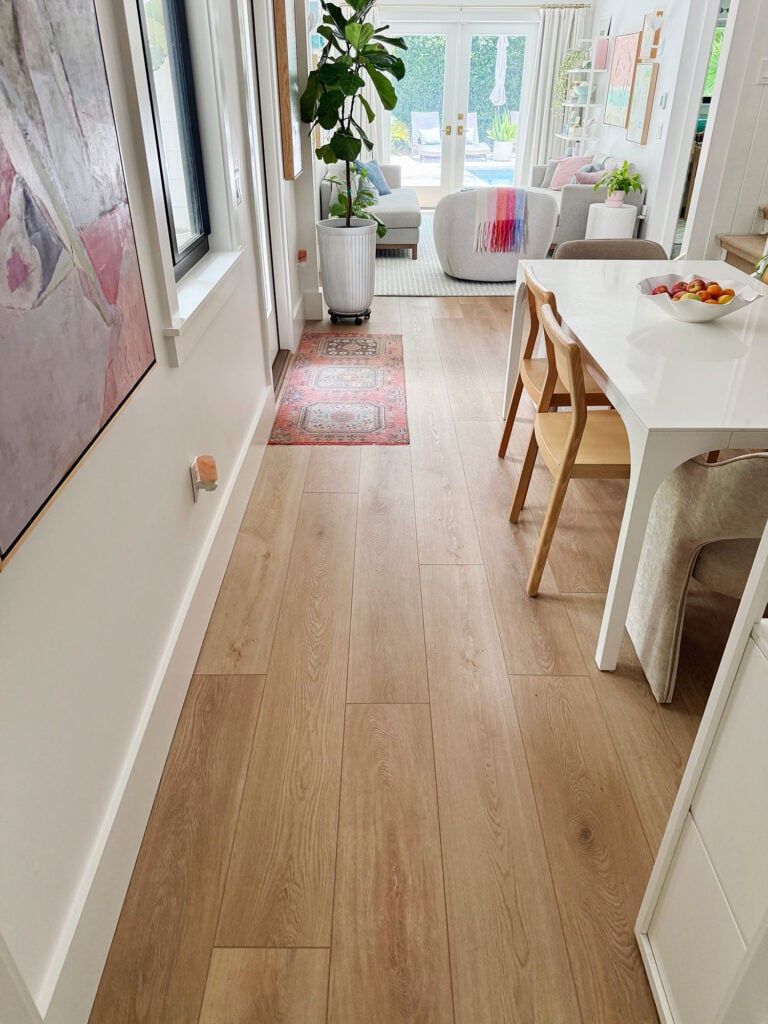
First we just have to take a moment of appreciation. There’s no doubt that our new floors are the biggest unsung hero of this renovation. The new lounge area, extra bathroom, and open view to our pool are the more obvious improvements, but the new floors bring a sense of polish we could never achieve by patching in some yellow pine, just due to how it wears over time. No matter how well we worked to make them match and to get them glossy and crack-free at first, we knew that over time they wouldn’t hold up.
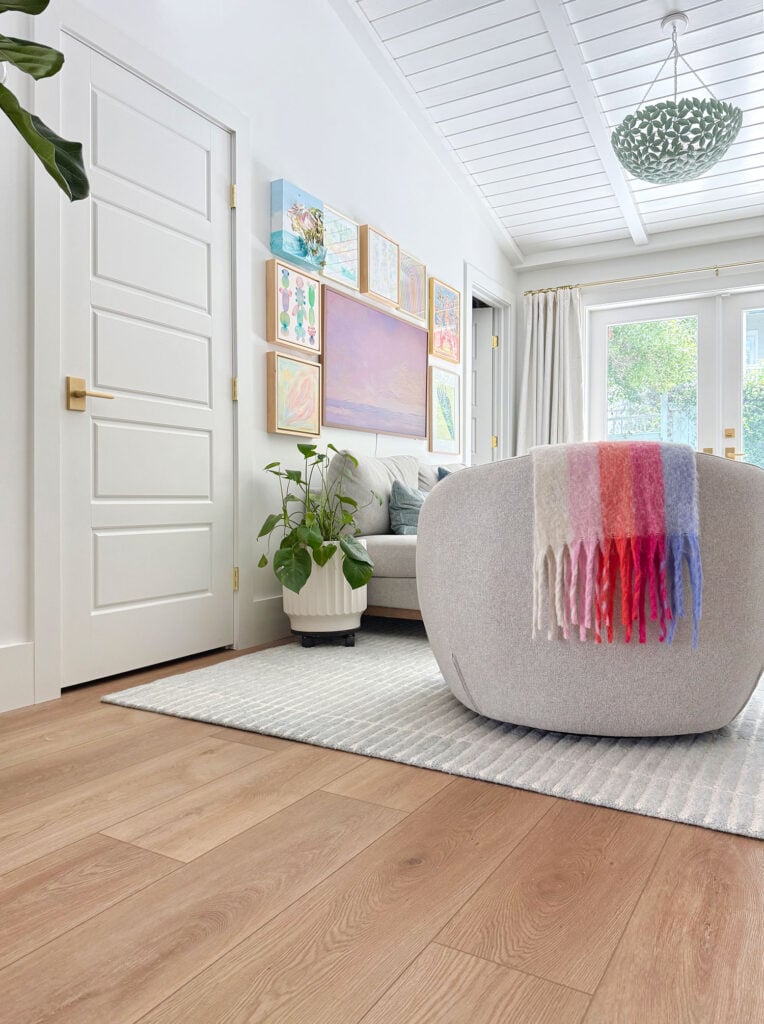
We’re really happy with the color, the wood grain, and the wide plank too. That last detail, in particular, helps our rooms feel larger than they actually are. They also make our home feel fresher and more updated. Our goal isn’t for a house to look brand new when renovating (we love an old house!) but having our floors look so bad a few years after refinishing was whispering “neglected” instead of “lovingly restored.” So going from a house that had annoying gaps and globs of wood putty to a fresh and smooth flooring result has been great.
And because this house was built in 1991 (it’s hardly historic), we love the wide planks, which are pretty popular in our area (this wasn’t an out-there choice). I will say, if you’ve got an older home or live in more historic area, I probably wouldn’t pick this wide-plank style. Maybe try something a bit darker and skinnier for less of a beach house vibe.
And now, here is what you’ve all been waiting for: the two things we had to adjust to with LVP after being such lifelong hardwood fans.
First, if you’re barefoot, the floors don’t feel like real hardwood on your feet. I can’t really describe how the feeling is different, just that it is. It’s not a bad thing, but you might be disappointed if you were hoping to pass them off as real hardwoods during a sockless party (you know, those are a thing, right?).
It’s like your feet can tell that the material is denser (it’s great for sound blocking) and not as slick. Our friends recently used LVP in their new home, and they observed the same thing about theirs. We both agreed that we love it overall, but it’s funny how your bare feet can tell the subtle difference in density and slickness. With socks and shoes on, you can’t tell though. At least we can’t.
The other adjustment was that it was sort of a rough feeling on our feet for the first week or so. It was as if the faux wood grain texture was just a little too “coarse” right out of the box. A few days after walking around on it, we’re not sure if our feet just adjusted or if we actually sanded it down a little with the foot traffic? Either way, then it wasn’t noticeable at all, and if you asked me now “does the floor feel rough?” I’d be like “…no. I’d describe it as smooth. Why would you say that?” It was just a funny and unexpected phenomenon at first, so heads up if you use the same or similar flooring!
The last thing is that, while it is durable, LVP is not indestructable. We already put a small ding under our refrigerator because we forgot to raise the metal foot on the fridge before rolling it out. It’s not noticeable, but it was a reminder that (unlike hardwood) damage to LVP isn’t something you can sand or buff out. So that’s a mental adjustment for us, especially after so many years of trying to salvage our old floors with wood putty and wax. The good news is that we’ve dropped many things heavier than an apple without a dent, and Sherry has heel-tested them (no dings, wheras our previous floors looked hole-punched). So yes, overall they’re much more durable. We also have some extra boxes of this exact flooring (always get extra!) so we can replace any areas that might get dented somehow.
What About Your Upstairs Floors?
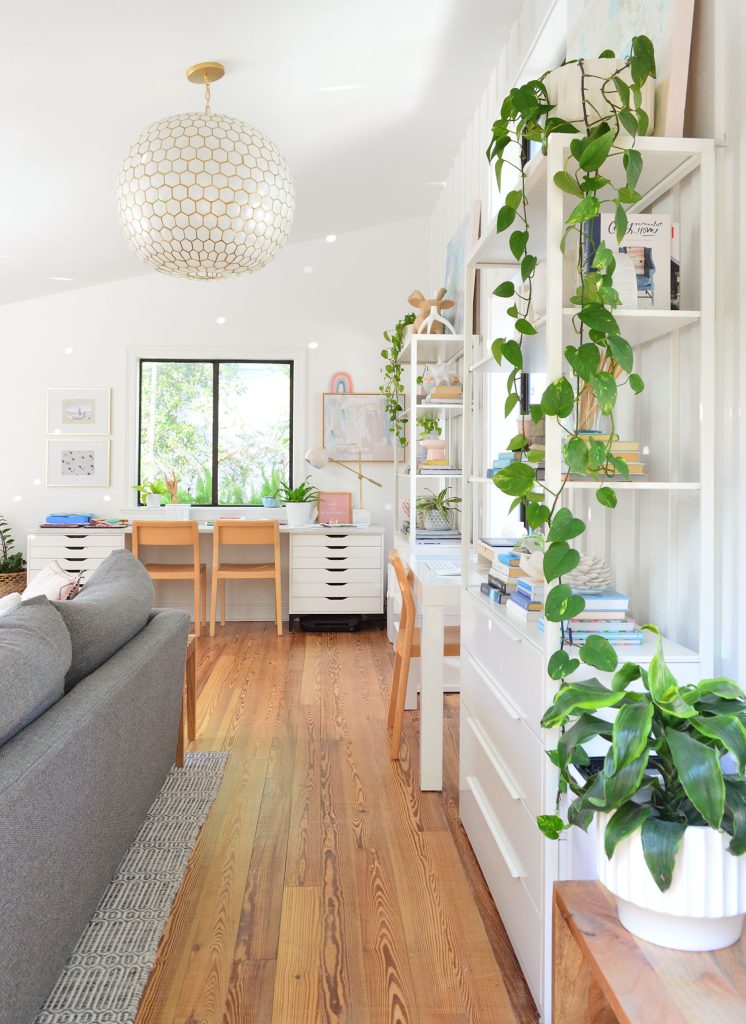
We didn’t do anything to our upstairs floors as part of this renovation. They’re still the original floors that we had refinished in 2020. Yes, that means our upstairs floors don’t match our downstairs floors. But… they never did! The upstairs has that much harder heart pine flooring that has held up a lot better than the regular pine downstairs.
Look ma, no cracks!
Maybe someday we’ll redo these to match the LVP downstairs if it bothers us over time, but the two materials never touch because we’ve got the painted stairs with the sisal runner separating them. Since the upstairs floors never pinch or splinter us, we don’t feel any urgency, and actually like that some of the orignal hardwoods get to live on up there.
So that’s the 411 on our new floors. We’ll get back to work on that larger post about the rest of our renovation, including our new bathroom. It’s pretty wild how much has changed thanks to this project, and we’re so glad we waited over 5 years to do it so we could be sure exactly what we wanted to get out of the update. It has exceeded our expectations, and we both think that’s from living here so long and truly figuring out what issues nagged at us (and what things we guessed would be issues down the line but never actually were). Your vision and how you live in a house just gets clearer over time.
More Flooring Posts
Here are more flooring posts you might enjoy, including some DIY tutorials for installing a click-and-lock floor like LVP.